WordPress errors always seem to happen at the worst time. You update a plugin before a launch, and the site goes white. Your host upgrades PHP, and suddenly every page says "There has been a critical error on this website." A customer messages you that checkout shows a 500 error. And the error message tells you almost nothing useful.
I'm Aldrian, an independent developer. I fix WordPress and WooCommerce errors regularly, from quick plugin conflicts to deep PHP compatibility problems.
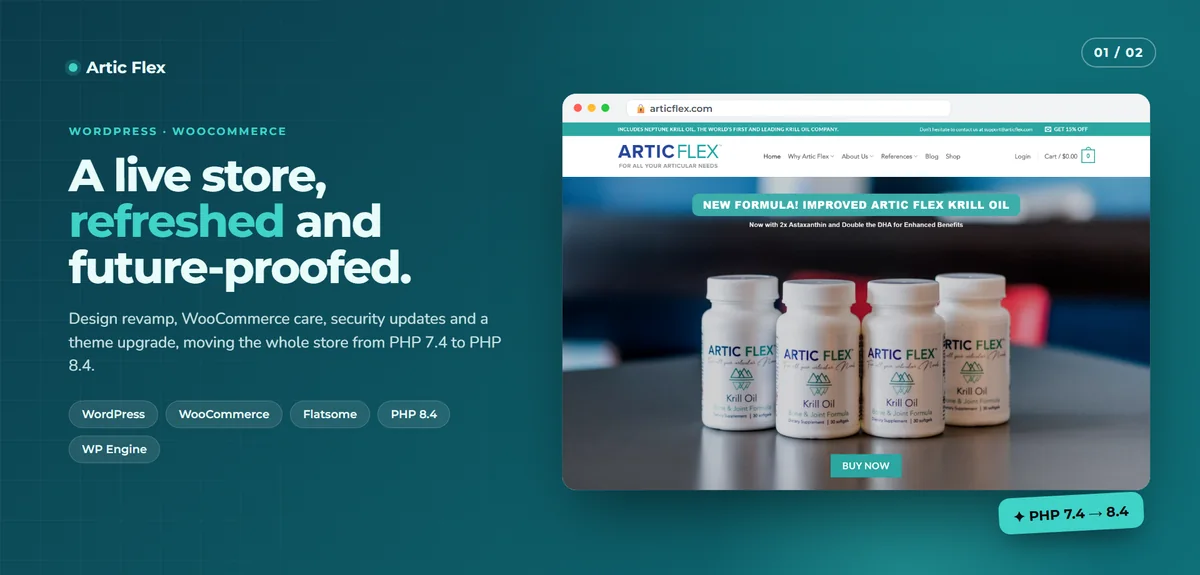
On my Artic Flex work, I moved a live WooCommerce store from PHP 7.4 to PHP 8.4. That meant patching plugins for compatibility, reviewing the child theme's outdated WooCommerce template overrides one by one and replacing unmaintained plugins, all proven on staging before going live. It's the kind of work that prevents the errors on this page.
Common WordPress errors I fix
"There has been a critical error on this website"
WordPress's friendly message for a PHP fatal error. Usually caused by a plugin or theme that isn't compatible with your PHP or WordPress version, or by a bad code change.
White screen of death
A blank page with no message. Same causes as the critical error, but with error display turned off.
500 Internal Server Error
A server-level failure. Common causes are broken server configuration rules, PHP fatal errors, memory limits or permission problems.
Error establishing a database connection
WordPress can't reach its database. Wrong credentials, a crashed database server, a corrupted table or hosting issues.
Allowed memory size exhausted
A plugin or process needs more memory than PHP allows. Raising the limit sometimes helps, but finding the memory-hungry code is the real fix.
Stuck in maintenance mode
An update was interrupted and left the site showing "Briefly unavailable for scheduled maintenance."
Layout broken after an update
Theme or page builder updates that change how pages render, or outdated template overrides in child themes.
Admin login loops and redirect errors
Cookie, URL or HTTPS configuration problems that keep sending you back to the login page.
Mixed content and HTTPS warnings
Pages loading some files over insecure HTTP after moving to HTTPS.
WooCommerce errors
Checkout failures, cart not updating, orders stuck on pending and payment gateway errors. See my checkout fix page.
How I fix WordPress errors
1. Back up first
Even a broken site has data worth protecting. I take a backup before touching anything.
2. Read the actual error
I enable debug logging safely, so the real error message and the file it came from are recorded without showing errors to visitors. Server error logs often tell the rest of the story.
3. Find the cause
Usually a specific plugin, theme file or function. I check versions against your PHP and WordPress versions and look for known compatibility issues.
4. Fix it properly
Depending on the cause:
- Update or roll back the plugin or theme
- Patch incompatible code
- Replace an abandoned plugin with a maintained alternative
- Update outdated child theme template overrides
- Repair the database or configuration
- Adjust server settings where appropriate
5. Test
The pages and features that were broken, plus checkout, forms and login, tested on phones and desktops.
6. Explain
A short summary of what went wrong, what I changed and how to avoid it next time.
Why errors happen more often than they should
- Updating everything at once on the live site without testing
- Abandoned plugins that never got updated for newer PHP
- Nulled plugins and themes with modified code
- Custom code added to themes without version control
- Child themes with old WooCommerce template copies
- Hosting PHP upgrades that happen without warning
Preventing errors
A few habits stop most of these problems:
- Test updates on a staging copy first
- Keep regular, tested backups
- Replace abandoned plugins early
- Keep PHP up to date, after compatibility checks
- Use version control for custom code
- Monitor uptime so you know quickly when something breaks
A maintenance plan can cover all of this.
Common mistakes when fixing errors
Deleting plugins at random. You may lose settings and data. Find the cause first.
Leaving debug output visible. Error messages shown to visitors can reveal sensitive information.
Raising memory limits forever. It hides the real problem.
Downgrading PHP to make an error disappear. Old PHP versions stop getting security updates.
If you can't get into the admin
Many errors lock you out of the WordPress dashboard completely. That's fine. I can work through your hosting file manager, SFTP or the hosting control panel to read logs, disable a faulty plugin by renaming its folder, switch to a default theme temporarily or repair configuration files. WordPress also has a recovery mode that sends an email link to the admin when a fatal error happens, which can help get back in safely. Hosting access is the most useful thing you can share when the site is down.
How it works
- Message me with your site address and what you're seeing.
- Share access to WordPress and hosting.
- I diagnose and tell you the cause and the fix, with a fixed price.
- I fix and test.
- You get a summary and prevention tips.
Let's get your site working again
Tell me what error you're seeing. I'll reply as soon as possible with next steps.