

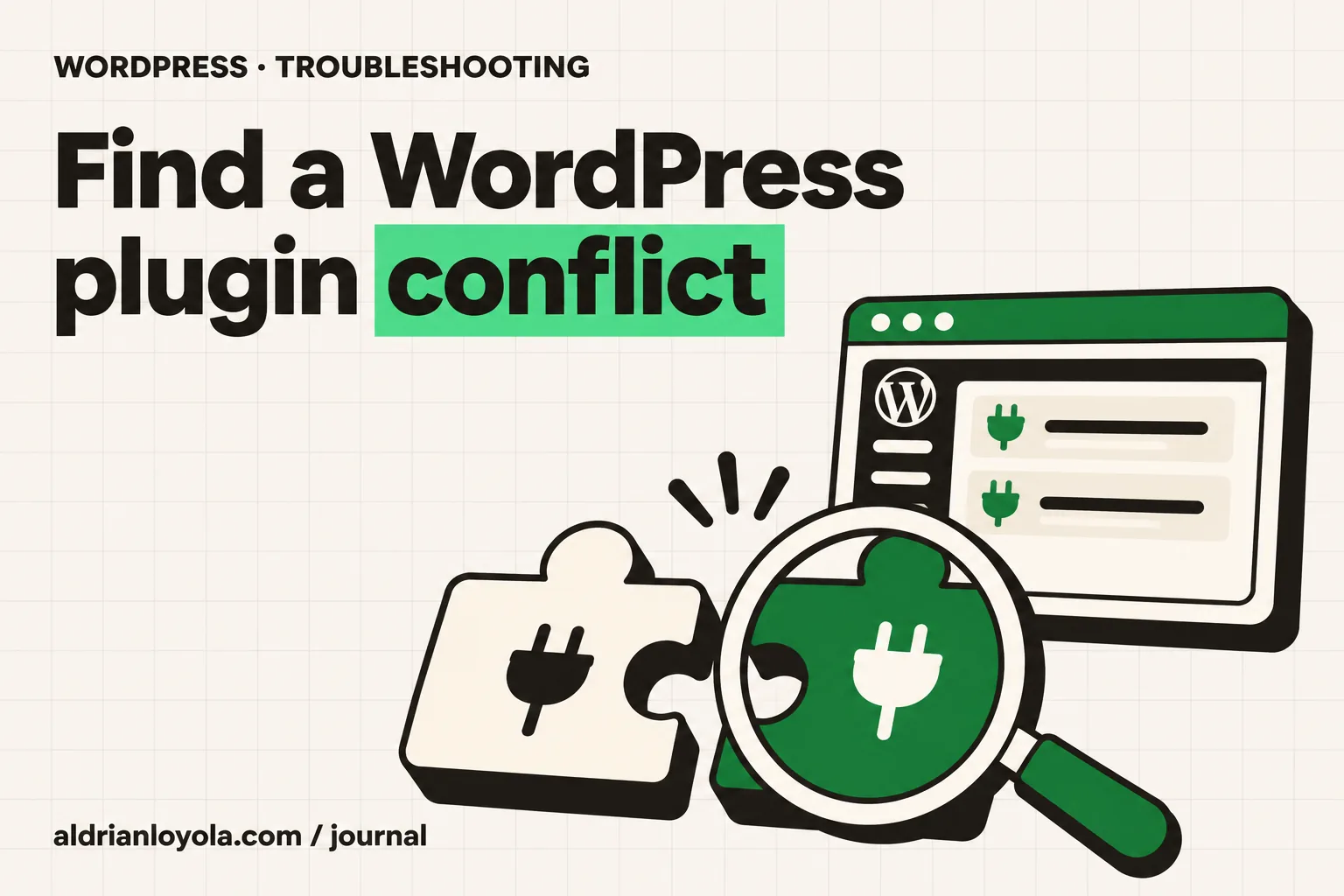
A form stops sending after you install an optimization plugin. A checkout button fails after a new extension is activated. A page builder works until another add-on is enabled. These situations can suggest a WordPress plugin conflict, but the symptom alone does not prove one.
A true conflict needs a repeatable test. You want to know whether a plugin fails by itself, whether a particular combination fails, or whether something outside those plugins is responsible. That distinction gives you a much better repair plan.
Start with one repeatable problem
Choose the smallest action that demonstrates the fault. Write the steps as if someone unfamiliar with the site needs to follow them.
For example: open the contact page, enter test details, select a required option, and submit. Record what should happen and what actually happens.
Avoid vague reports such as “the website feels broken.” Add the affected URL, relevant screenshot, and any error wording. Leave out customer information and private credentials. A controlled test makes it much easier to compare results after each change.
Protect the live customer experience
Create a current backup before testing. If the website handles sales, bookings, or memberships, use a staging copy for broad plugin isolation.
Confirm staging has the relevant versions and settings. Restrict access and avoid sending real customer emails or running live payment actions from the test copy. A staging site should reproduce the fault without creating unintended business activity.
If immediate live recovery is necessary, choose a targeted change and note its consequences. Deactivating the plugin that processes bookings may restore a page while preventing new bookings, so explain the temporary limitation.
List the relevant components
Record the WordPress version, PHP version, theme, and the plugins involved in the affected feature. Include extension dependencies, rather than treating each installed plugin as independent.
For a checkout problem, this may include the store platform, payment integration, shipping extension, and optimization layer. For a form problem, include the form plugin and related add-ons.
Start with what changed recently, but keep an open mind. A new version may reveal an existing incompatibility rather than being faulty on its own. The purpose of the list is to guide testing, not assign blame.
Test the suspected plugins individually
On staging, establish a working baseline with the components required for the test. Then activate the first suspected plugin and repeat the action.
Test the second suspected plugin separately under the same conditions, preserving any required dependencies. Finally, test the combination. Write down each result.
If each works independently and the failure occurs together, you have evidence of a conflict. If one fails independently, investigate that plugin or its configuration first. If none of these tests reproduces the fault, another component or condition remains involved.
Include the theme when needed
Themes can add scripts, templates, integrations, and custom behavior. A failure involving a plugin may depend on the active theme.
Test with a default WordPress theme on staging to help isolate that relationship. Record the result and restore the intended theme after the test.
Be careful interpreting missing design elements during this step. A default theme will not reproduce every feature of a custom theme. You are checking whether the original functional error remains, rather than expecting a finished replacement design. Ask a developer to handle tests involving theme-specific business logic.
Check overlapping features before replacing software
Two plugins may both try to control caching, redirects, forms, security checks, image processing, or another shared task. Review their settings and documentation for overlapping responsibilities.
Sometimes the fix is to let one component handle a feature and disable that feature in the other. In other cases, a vendor provides an integration setting or supported exclusion.
Do not turn off protections broadly to make a test pass. Use a narrow, documented adjustment and verify that the required protection or function remains in place. A working page is only part of the result.
Distinguish caching from a persistent conflict
After each relevant change, clear the appropriate cache and retest with a fresh browser session. Keep the test URL and user state consistent.
Logged-in administrators may see different behavior from public visitors. If the problem happens only when signed out, include that condition in the test record.
Avoid clearing every cache repeatedly without changing anything else. The useful question is whether the same action still fails after the intended setting or component has changed. Reproducible results are more valuable than a single page that happens to work.
Choose the smallest lasting correction
Once you know the failing combination, compare supported options: a corrected plugin release, a documented setting, a small integration fix, or replacement of one component.
Consider what data and workflows a replacement would affect. Switching a forms plugin may require moving entries, rebuilding notifications, and testing integrations. Replacing a checkout extension may affect existing orders or subscriptions.
Avoid editing a vendor plugin directly without a maintenance plan. Updates can overwrite those edits. Ask the developer how the correction will be preserved and how future releases will be tested.
Report the issue clearly
A useful private support report includes:
- The exact reproduction steps and expected result.
- The WordPress, PHP, theme, and plugin versions.
- The result with each suspected plugin active separately.
- The result with the failing combination active.
- A relevant error excerpt with private information removed.
This gives the vendor evidence they can act on. Do not provide administrator access publicly. If access is needed, arrange it through a suitable private process with an appropriate scope and removal plan.
Retest the complete workflow
After applying the correction, restore the required plugins and settings on staging and repeat the original action. Test the connected steps too.
For a form, check validation, submission, stored entry, and notification delivery. For an online store, check cart, checkout, payment testing, shipping, and customer messages as relevant.
Plan the live change with a backup and a way to reverse it. After deployment, repeat the important checks on the public site. Keep a short note describing the confirmed conflict and the final correction.
Get help with a difficult conflict
If you cannot reproduce the issue safely or several integrations are involved, a developer can build the test plan and separate the possible causes.
I offer website maintenance and fixes for WordPress troubleshooting. For ongoing prevention, follow my monthly maintenance checklist.
For a detailed official example of testing components separately and together, see WordPress.com’s plugin conflict guide. Its hosting-specific details may differ from your setup, but the controlled comparison is useful.