

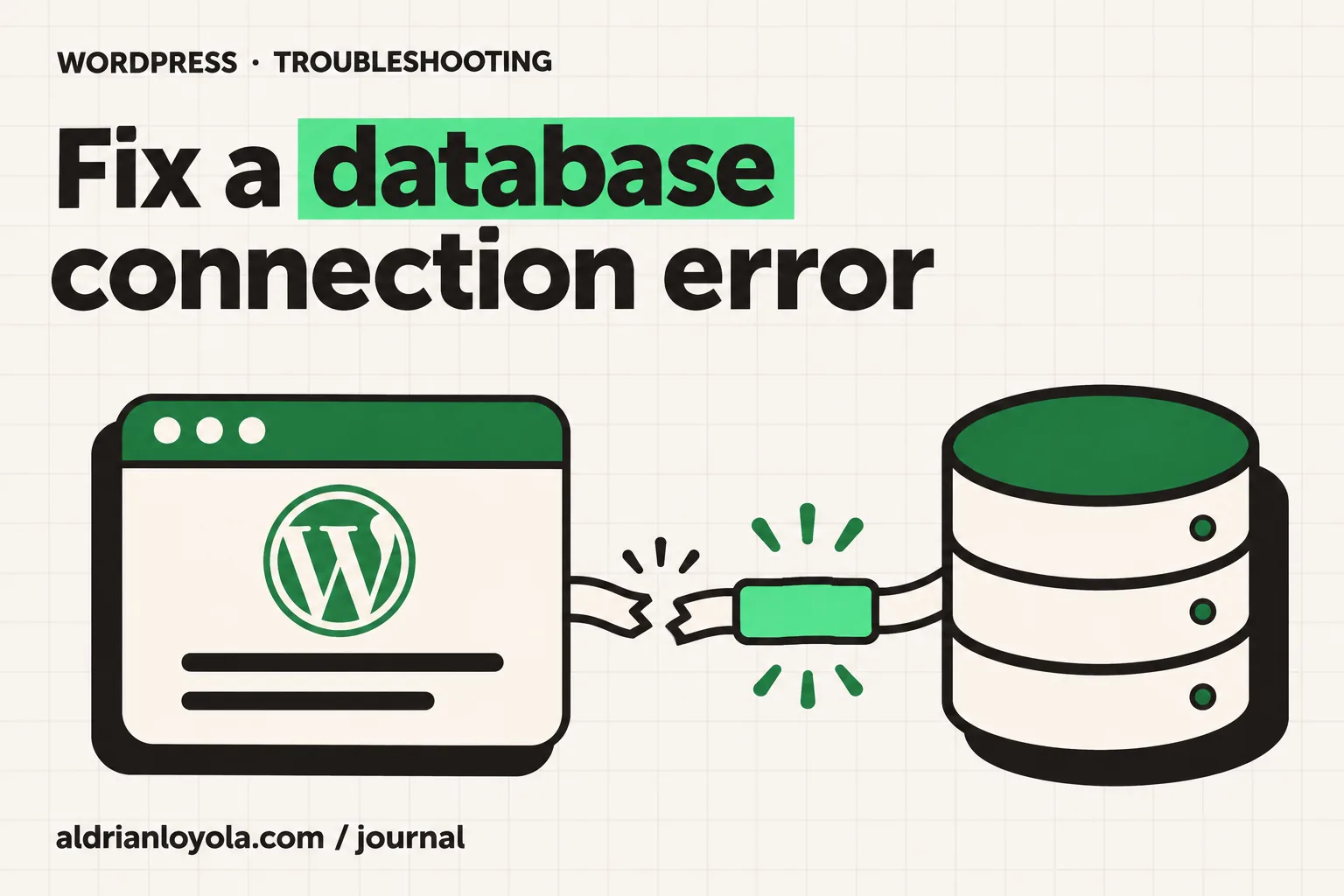
“Error establishing a database connection” means WordPress cannot make the database connection it needs. That database holds much of the information behind your pages, settings, accounts, and orders.
The message is alarming, but it does not automatically mean your data is gone. The database may be unavailable, the connection details may be wrong, or the database account may lack the required access. The safest response is to confirm which situation applies before attempting repairs.
1. Record when the problem began
Note the affected domain, the exact message, and the approximate time. Check whether the dashboard shows the same problem as the public website.
Review recent changes: a hosting migration, configuration edit, database account update, or restore can be relevant. Tell your host what changed even if it seemed unrelated.
Avoid repeatedly editing connection values in the hope that one works. A written timeline helps you test a specific explanation and makes it easier for support to find the matching server event.
2. Ask your host whether the database service is available
Start with availability. Ask hosting support whether the database server is running and reachable from the website’s server.
A database service problem may affect several sites or may be limited to your account. Provide the domain and timestamp so support can check the correct environment.
If the service is unavailable, changing WordPress plugins will not bring it back. Ask for the cause, the recovery status, and whether anything needs checking afterward. Keep your website’s current files intact while the infrastructure issue is investigated.
3. Protect the current files and data
Before changing configuration or restoring anything, preserve the current website files and request a database backup if the service allows it.
If the database is unavailable, ask your host what recent snapshots exist and whether it can preserve the current state during recovery. Do not assume an inaccessible database is an empty database.
For online stores, establish the time of the latest successful orders. Restoring an earlier database can omit newer transactions and customer changes. Plan that decision with the people handling orders and payments rather than treating it as a simple website appearance fix.
4. Check the connection details privately
WordPress commonly receives its database name, username, password, and host through its configuration. Some managed environments supply these values through hosting-specific systems.
A developer should compare the active values with those expected by your host. The database host is provider-specific; do not assume a value copied from another site will work.
Keep credentials out of screenshots, email chains, and public support questions. Ask support to verify the match without asking you to expose the secret in a public channel. A configuration backup should also be stored securely.
5. Verify the database account has access
A database user can exist without having the access required for the intended database. This can happen during a migration or after account changes.
Ask the host to verify the association and privileges for the existing database user. If a change is required, it should be limited to the correct database and account.
Avoid granting broad access to every database on the server. The goal is to restore the intended connection. Document the correction so future migrations can preserve the working arrangement instead of recreating the same problem.
6. Review a recent migration carefully
Moving website files does not necessarily move the database or update its connection configuration. Confirm that the migration included both parts.
Ask which environment the domain currently reaches. If DNS points to the new website server but the database configuration still references the old environment, the site may fail to connect.
Also check that the imported database is the intended one and that the expected tables are present. Do not merge unfamiliar databases or change table prefixes at random. A developer should compare the migration records with the current configuration before editing.
7. Investigate intermittent failures differently
If the error appears only sometimes, capture the times and any activity happening around them. Imports, backups, traffic changes, and scheduled tasks can provide useful context.
Ask hosting support to review connection limits and server resources during those periods. A one-time successful connection test may miss an intermittent availability issue.
Do not assume that upgrading hosting is the only answer. The evidence may point to a faulty task, excessive repeated requests, or a service incident. A useful recommendation should explain which limit or process is involved and how the proposed change addresses it.
8. Repair tables only when there is evidence
A connection error by itself does not prove that database tables are corrupted. Ask your host or developer to verify the database condition before running repair tools.
Any repair procedure should begin with a backup and a clear understanding of the affected storage engine and tables. Avoid trying several repair plugins on a live store without a diagnosis.
Some recovery features require temporary configuration changes. Have your developer remove those settings when finished and confirm the repair interface is no longer exposed. Keep the incident report separate from private database contents.
9. Plan a restore around business records
If restoration is necessary, confirm the restore point, included database, and expected data gap. Preserve the current database where possible before replacing it.
Compare recent orders, signups, and submissions with records held in connected systems. Reconciliation may be required after an older backup is restored.
This is a good point to involve a developer if the website handles transactions. A restored site can look correct while missing recent records. Successful recovery means the business can trust its data as well as open its pages.
Verify the connection and key functions
After the connection works, test both the public website and dashboard. Check that pages display their expected content and that account access behaves normally.
Use a test submission to confirm new records can be saved. If you run a store, follow a suitable payment test and review the order result without making unintended charges.
Review logs for recurring connection failures. For an intermittent incident, ask the host what monitoring will confirm that the issue stays resolved. Record the cause, correction, and any remaining follow-up work.
Get help without sharing secrets
A useful support request includes the domain, timing, recent changes, and the fact that both the dashboard and public site are affected, if that is true.
I offer website maintenance and fixes, including migration and WordPress troubleshooting. The monthly maintenance checklist can help you keep backup and recovery checks in your routine.
For the official overview of database connection errors, see WordPress common errors.