
A slow website costs you in two ways. Visitors leave before the page finishes loading, and search engines treat page experience as one of many ranking signals. The good news is that most WordPress speed problems come from a short list of causes. Work through them in order and you'll usually find the problem.
1. Measure before you change anything
Guessing wastes time. Start with real numbers:
- PageSpeed Insights shows both lab data (a simulated test) and field data from real Chrome users, if your site has enough traffic.
- Your browser's DevTools (the Network and Performance panels) show exactly which files load and how long each one takes.
Test the pages that matter most: the homepage, a key service or product page, and a blog post. Write down the results so you can compare after each change.
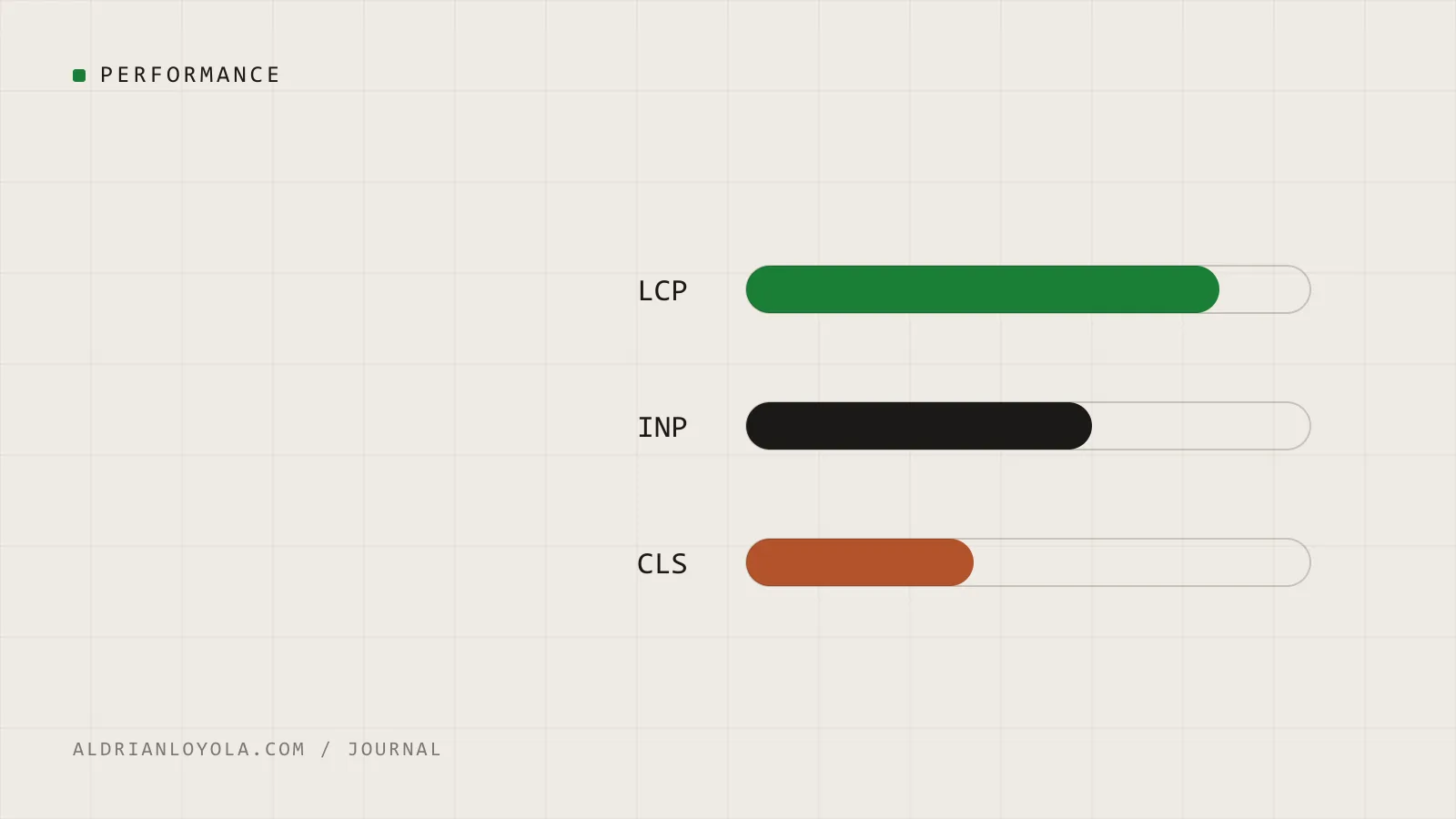
Focus on the three Core Web Vitals:
| Metric | What it measures | "Good" threshold |
|---|---|---|
| LCP (Largest Contentful Paint) | How fast the main content appears | 2.5 seconds or less |
| INP (Interaction to Next Paint) | How quickly the page responds to taps and clicks | 200 milliseconds or less |
| CLS (Cumulative Layout Shift) | How much the layout jumps around while loading | 0.1 or less |
2. Fix your images first
On most small business sites, images are the biggest files on the page. Common problems:
- Uploading a 4000-pixel photo straight from a phone and displaying it at 800 pixels wide.
- Using PNG for photographs. PNG is great for logos and screenshots, but JPEG, WebP, or AVIF are far smaller for photos.
- Loading every image immediately, even the ones far down the page.
What to do:
- Resize images to roughly the largest size they're actually displayed at (about 2x for sharp screens).
- Convert photos to WebP or AVIF. Many image optimization plugins can do this automatically.
- Make sure below-the-fold images use lazy loading. WordPress adds
loading="lazy"to most content images by default. - Do not lazy load the main hero image. It should load as early as possible, because it's often your LCP element.
3. Turn on page caching
Without caching, WordPress runs PHP and database queries to build every page on every visit. Page caching saves the finished HTML and serves that copy instead.
Many managed WordPress hosts include server-level caching. If yours doesn't, a well-known caching plugin will help. Only use one caching solution at a time. Stacking two often causes stale pages or broken layouts.
4. Audit your plugins
Plugins are one of the best things about WordPress and one of the most common causes of slow pages. For each plugin, ask:
- Do I still use this?
- Does it load scripts or styles on every page, even pages where it isn't needed?
- Is there a lighter alternative, or could a few lines of code do the same job?
Deactivate plugins one at a time on a staging copy and re-test. Sliders, social feeds, and all-in-one page builders are frequent offenders.
5. Tame third-party scripts
Chat widgets, analytics tags, heatmaps, embedded videos, and ad pixels all load code from other servers. Each one adds requests and can block the main thread, which hurts INP.
- Remove tags you no longer look at.
- Load chat widgets only after the visitor interacts with the page, if your tool supports it.
- Replace embedded YouTube players with a lightweight preview image that loads the real player on click.
6. Load fonts efficiently
Custom fonts make a site feel polished, but each weight and style is another file.
- Limit yourself to two families and only the weights you actually use.
- Prefer variable fonts or self-hosted WOFF2 files.
- Use
font-display: swapso text appears immediately while the font loads.
7. Check your hosting
If your server takes more than about 600 milliseconds to start responding (shown as Time to First Byte in many tools), no amount of front-end tuning will fully fix the site. Very cheap shared hosting is a common culprit. A move to better hosting, plus a CDN for static files, is sometimes the single biggest improvement.
8. Keep WordPress and PHP current
Newer PHP versions are generally faster than older ones, and WordPress core updates often include performance work. Update on a staging site first, confirm nothing breaks, then update production.
A sensible order of operations
If you only have an afternoon:
- Measure the key pages.
- Compress and resize the largest images.
- Make sure page caching is on.
- Remove one or two plugins you don't need.
- Measure again.
Small, measured changes beat a big batch of tweaks you can't untangle later. And if the numbers still don't move, the problem is usually the theme, a heavy plugin, or the hosting, which is where a developer can save you a lot of trial and error.