
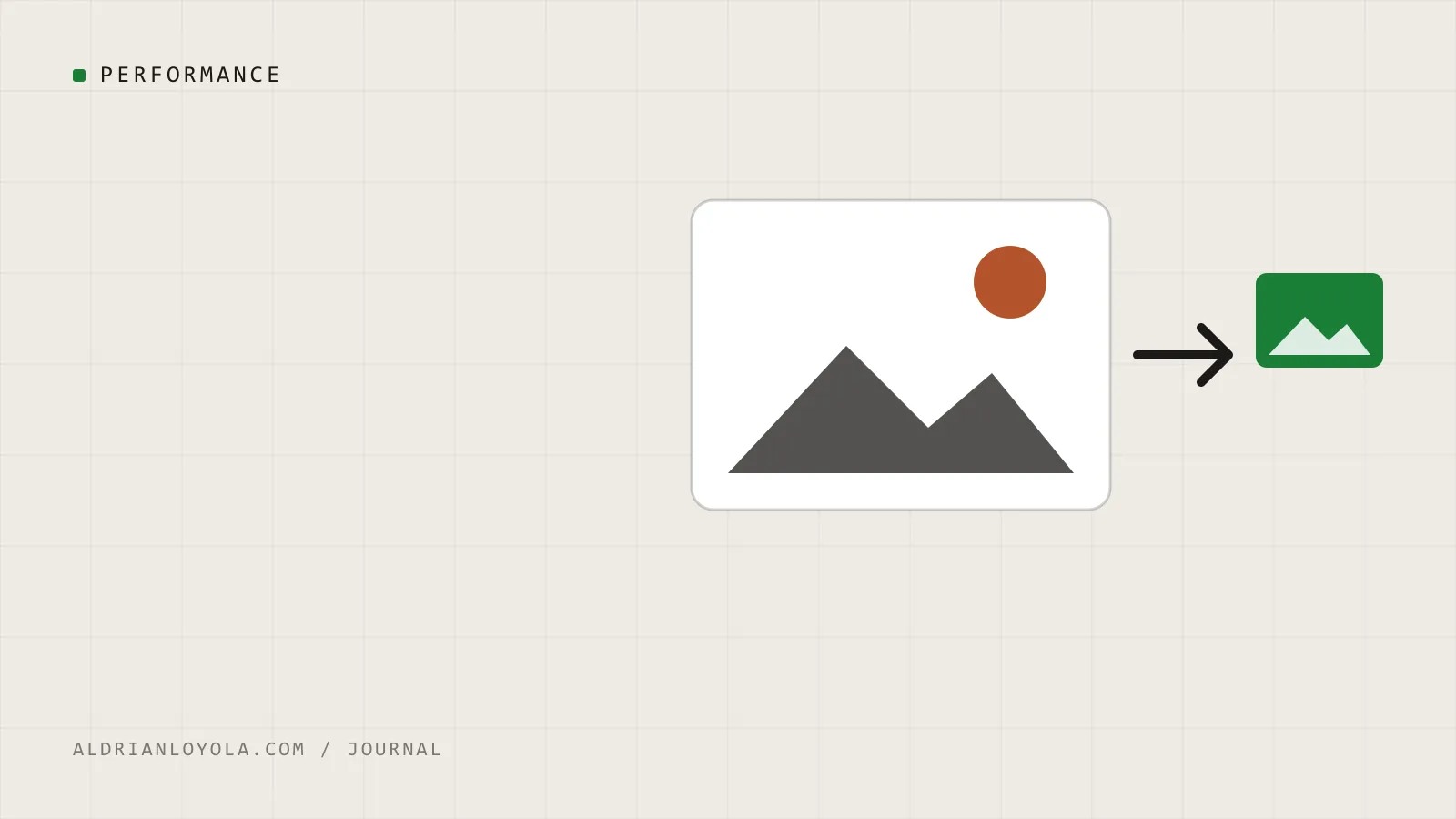
When a page feels slow, images are the first place I look. A single photo straight off a phone camera can weigh several megabytes, which is more than the rest of the page combined.
The good news: image optimization is one of the easiest speed wins, and most of it doesn't require touching code.
1. Resize before you upload
If an image will never be shown wider than about 1,600 pixels, there's no reason to upload a 4,000 pixel original. The browser still downloads the full file, then shrinks it.
A simple rule of thumb:
- Full-width hero images: around 1,600 to 2,000 pixels wide
- Content images inside an article: around 1,200 pixels wide
- Thumbnails and cards: 600 to 800 pixels wide
2. Choose a modern format
| Format | Best for | Notes |
|---|---|---|
| WebP | Photos and graphics | Widely supported and usually much smaller than JPEG at similar quality |
| AVIF | Photos | Often smaller still, but slower to encode |
| JPEG | Photos (fallback) | Fine when nothing else is available |
| PNG | Logos, screenshots with sharp text | Avoid for photos, files get large |
| SVG | Logos and icons | Tiny and sharp at any size |
For most business sites, WebP is a safe default for photos.
3. Compress sensibly
Compression removes detail the eye barely notices. A quality setting around 75 to 85 is a good starting point for photos. Compare the before and after at normal viewing size, not zoomed in to 400%.
Tools that help:
- Squoosh (free, in the browser)
- Your image editor's "export for web" option
- WordPress image optimization plugins that convert and compress on upload
4. Let the browser pick the right size
On a phone, there's no need to download the desktop-size image. Responsive images (the srcset and sizes attributes) let the browser choose the smallest file that still looks sharp. WordPress adds these automatically for images inserted through the media library.
5. Lazy-load images below the fold
Images further down the page don't need to load immediately. Adding loading="lazy" tells the browser to wait until the visitor scrolls near them.
One exception: don't lazy-load your main hero image. It's usually the largest visible element, and delaying it makes the page feel slower and hurts Largest Contentful Paint.
6. Always set width and height
When the browser knows an image's dimensions in advance, it reserves the space before the file arrives. Without them, text jumps around as images pop in, which is frustrating for visitors and counts against Cumulative Layout Shift.
7. Don't forget alt text
Alt text isn't a speed tip, but it belongs on every checklist. It describes the image for people using screen readers and gives search engines context. Describe what's in the image and why it's there. Decorative images can have empty alt text.
A quick audit you can do today
- Run your homepage through PageSpeed Insights.
- Look for opportunities mentioning images ("properly size images", "serve images in next-gen formats").
- Fix the biggest files first. The top three are usually responsible for most of the weight.
Small changes here often make a noticeable difference, especially for visitors on mobile data.