
Move Your Website to a New Host Without Downtime
A careful, step-by-step plan for switching web hosts while keeping your site, email, and search rankings intact.
- Type
- Guide
- Requires
- Access to your current host, new host, and domain DNS
- Updated
- Sep 25, 2026
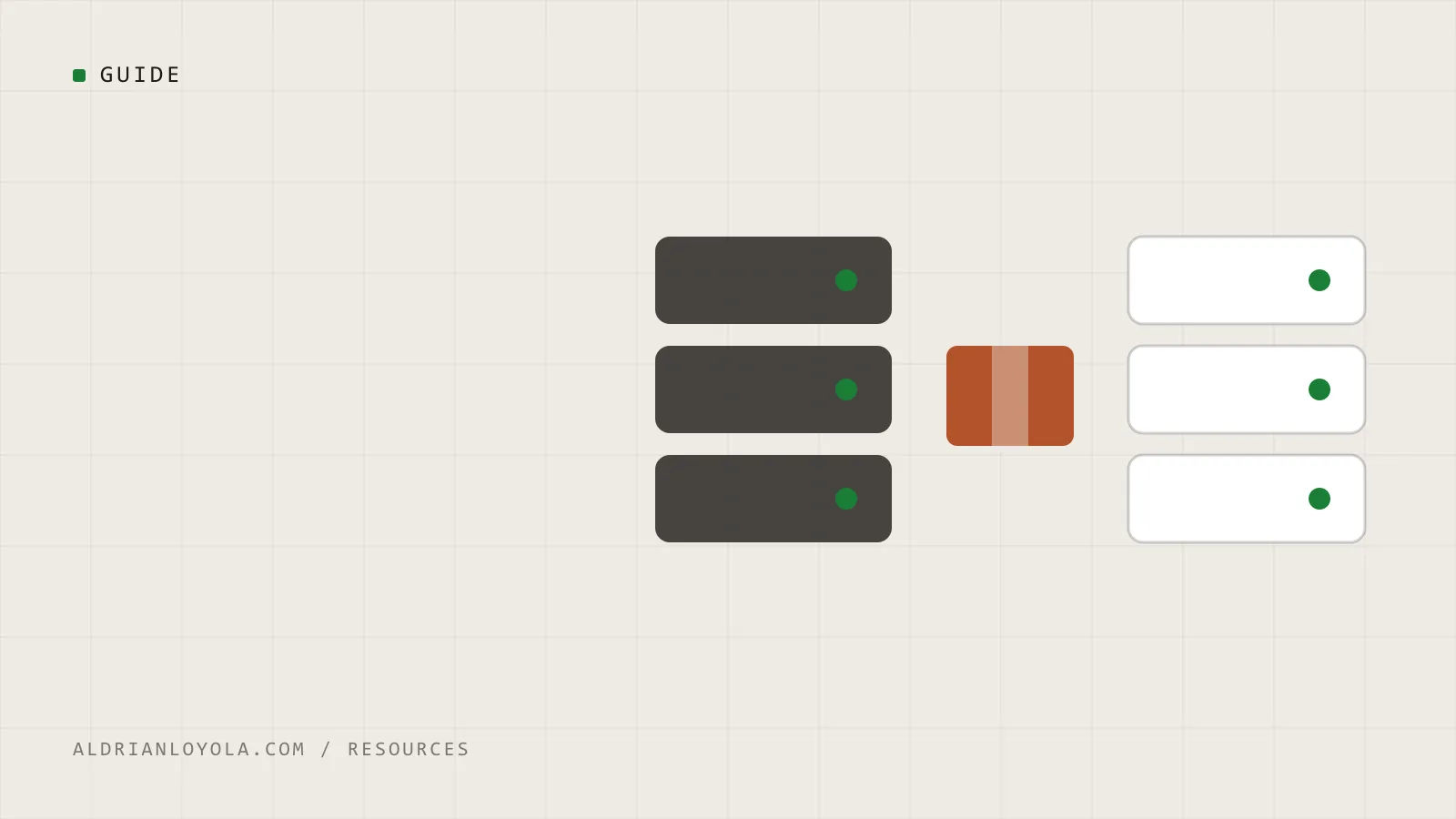
Moving hosts sounds risky, but most problems come from rushing or forgetting a step. Follow this plan and visitors shouldn't notice anything changed.
Before the move
- Make a list of everything on the current hosting: websites, email accounts, databases, cron jobs, SSL certificates
- Find out where your email is hosted. If it's with your current host, plan that move separately
- Lower the TTL on your DNS records (for example, to 300 seconds) a day or two before the switch, so changes take effect faster
- Take a full backup of files and database
- Pick a quiet time for the final switch
Copy the site
- Copy all website files to the new host.
- Export the database from the old host and import it on the new one.
- Update the database connection details in your configuration (for WordPress,
wp-config.php). - Many hosts offer free migration tools or plugins that handle these steps for you.
Test before anyone sees it
Don't change DNS yet. Preview the site on the new host first:
- Use your new host's temporary URL or preview feature, or
- Edit your computer's hosts file to point your domain at the new server
Then check:
- Homepage and key pages load correctly
- Images and downloads work
- Forms send email
- Logins work, including the admin area
- Online store: products, cart, checkout in test mode
Switch over
- Freeze changes on the old site (no new posts or orders if possible).
- If anything changed since you copied, sync the latest database.
- Update DNS to point to the new host.
- Set up SSL on the new host as soon as DNS resolves.
After the move
- Visit the site from a phone on mobile data to confirm it loads from the new host
- Re-test forms and email delivery
- Check Google Search Console for new errors over the next few days
- Keep the old hosting active for at least a week, in case you need anything from it
- Set your DNS TTL back to a normal value
Common mistakes to avoid
- Cancelling the old hosting before confirming everything works
- Forgetting email, so messages stop arriving
- Changing URLs during the move. Migrate first, redesign later
- Skipping the backup "because the migration tool handles it"
Need something built around this for your site?
Get in touchMore
Other guides
The WordPress Speed Checklist
A step-by-step checklist to find and fix the most common causes of a slow WordPress site, in the order that usually gives the biggest wins.
Set Up Google Search Console in 15 Minutes
How to verify your website in Google Search Console, submit your sitemap, and read the three reports that matter most for a small business.
Back Up and Restore a WordPress Site
What a complete WordPress backup includes, how to automate it, where to store it, and how to test a restore before you ever need one.